





Turn a photo album, self-hosted library, or local/NAS folder into a Home Assistant camera slideshow. The included dashboard card adds smooth transitions, captions, and optional photo controls. Adjust slideshow settings live through Home Assistant entities.
| Guide | What you will find |
|---|---|
| Provider Setup | Connect your photo source, choose albums and quality, understand metadata and privacy, and troubleshoot |
| Card Guide | Add the card, use navigation and hide/restore controls, configure captions and transitions, and see full YAML options |
| Reference | Runtime settings, rendering options, entities, camera attributes, and automation actions |
- Automatic slideshows with adjustable timing, album refresh, and manual Previous/Next.
- Pause/resume, an optional pause while no dashboard is showing the slideshow, and a configurable rendered-frame buffer for quick navigation.
- Hide and restore photos per slideshow without changing the source library.
- Optional on-demand or always-visible navigation and photo-management controls.
- Pair portrait or landscape photos, choose cover/contain/blur, and set the aspect ratio.
- Browser-side transitions and date, location, or description captions when the source provides them.
- Clock, date, and weather captions, with optional colored weather icons.
- Random or album order, capture/upload date ordering, and date filters including On this day.
- Optional Immich video and Live Photo playback in the dashboard card, with sound.
Choose a source below for its setup instructions. The provider comparison shows which sources provide dates, locations, and descriptions.
| Source | Connection |
|---|---|
| Google Photos | Shared album link |
| Immich | Server URL and API key; albums, people, favorites, or search |
| PhotoPrism | App password or account; albums, people, favorites, or search |
| iCloud | Public Shared Album link |
| Synology Photos | DSM account; personal or shared library |
| Nextcloud | Authenticated WebDAV folder or public Photos album link |
| Ente Photos | Public album link; decrypted inside Home Assistant |
| Local Folder / NAS | Folder accessible to Home Assistant |
| Media Source | Home Assistant media browser, including local media and Jellyfin |
| UGREEN NAS (UGOS Photos) | NAS account; experimental, undocumented API |
- Find Album Slideshow in HACS and download it.
- Restart Home Assistant.
- Go to Settings > Devices & services > Add Integration, choose Album Slideshow, and follow the setup guide for your source above.

- Download
album_slideshow.zipfrom the latest release. - Extract its contents into
config/custom_components/album_slideshow/. The ZIP has component files at its root:manifest.jsonmust be directly inside that folder, not in another nested directory. - Restart Home Assistant and add the integration from Devices & services.
Update through HACS, restart Home Assistant, and reload the dashboard. See the release notes for version-specific upgrade instructions.
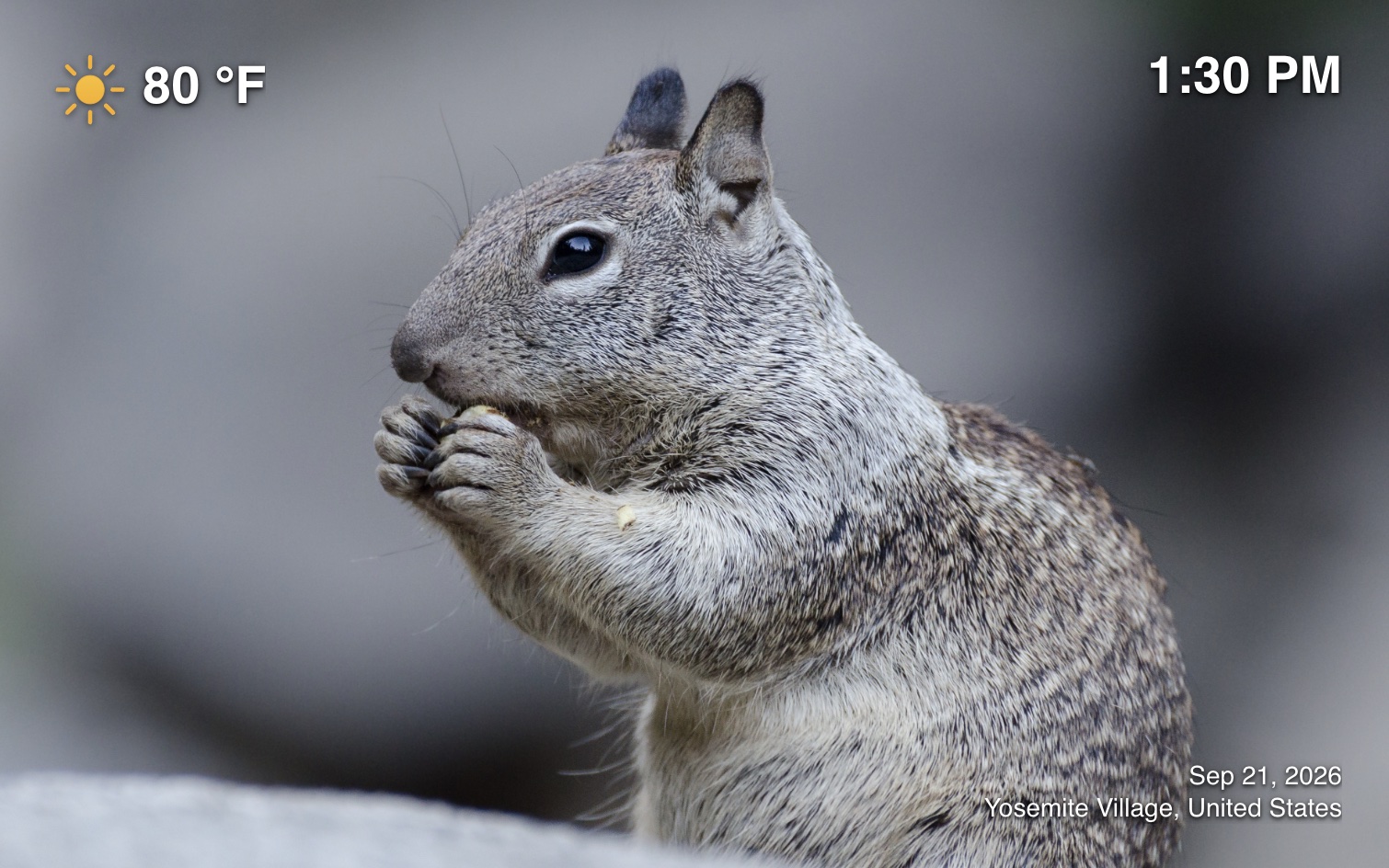
In the dashboard editor, add an Album Slideshow card and select your camera. The card is registered automatically; no separate HACS frontend installation or manual resource entry is needed. Hard-refresh the dashboard after an upgrade if the new card script has not loaded.
type: custom:album-slideshow-card
entity: camera.album_slideshow_living_room
Replace the example entity with your slideshow camera.
See the Card Guide for full YAML options, transitions, and captions.
In the card editor, choose Interaction > Photo controls > On demand or Always. Displayed-card controls are Off by default.
Hide either photo in a pair or both, undo the last hide, and restore photos from the hidden list. Exclusions persist per slideshow and never change the source library. See the hide/restore guide for gestures, paired-photo choices, and storage safeguards.
The slideshow camera can also be the background of a View Assist display. View Assist's Album Slideshow & Gesture Controls blueprints add swipe gestures and keep the background in sync with the camera. Without the sync blueprint, the background can lag behind the camera, so Previous slide and Next slide may seem to jump to a different photo.
- Runtime settings: timing, ordering, date filters, resolution, and cache limits.
- Rendering options: pairing, fill modes, aspect ratios, and transparent dividers.
- Pause and navigation: manual navigation while paused, pausing when not viewed, and the rendered-frame buffer.
- Entities: camera, buttons, and diagnostic sensors.
- Camera attributes: photo metadata, exclusion state, and navigation status.
- Automation actions: navigation, refresh, hide/undo/restore, and paginated hidden-photo lists.
- Still images only; video playback is not supported.
- Metadata varies by source. See provider capabilities and the EXIF privacy settings.
- HEIC/HEIF support depends on the codecs available in your Home Assistant installation.
- See Google Photos limits, including the scraper fallback and cached albums.
- See Immich requirements and legacy iCloud troubleshooting.
- Renaming a local file or reimporting an asset can change its identity. See photo identity and exclusions.
Ask questions in the community forum or report problems on GitHub Issues. Include your Home Assistant version, integration version, provider, and steps to reproduce. See CONTRIBUTING.md for contribution guidelines.
If you find the integration useful, you can support its development:
